The admin sets it up once.
- 1
Turn on sharing
On the Pipedrive, Outlook or Google connection, the admin turns on “Share appointments with the team”.
- 2
Pick the types
You pick which appointment types count, such as Installation, Measuring and Service. Calls and e-mail tasks stay private.
- 3
Choose the split
An appointment goes to the assigned user, or to the people whose initials are in the title.
The title says who goes.
-
Installation RL JV · Dorpsstraat 12
This appointment goes to Richard and Jan.
-
Table from the names
Half5 suggests the initials table from your users' names. You adjust it where needed.
-
Nothing gets lost
Unknown initials stay with the planner, with the notice “Unknown initials: XY”.
From appointment to address to hours.
- Your own appointments
Each employee sees their appointments in the Agenda, per day or per week. The planner sees the whole team.
- Two taps to the address
One tap opens the project. A second tap starts navigation to the address.
- Hours on the right project
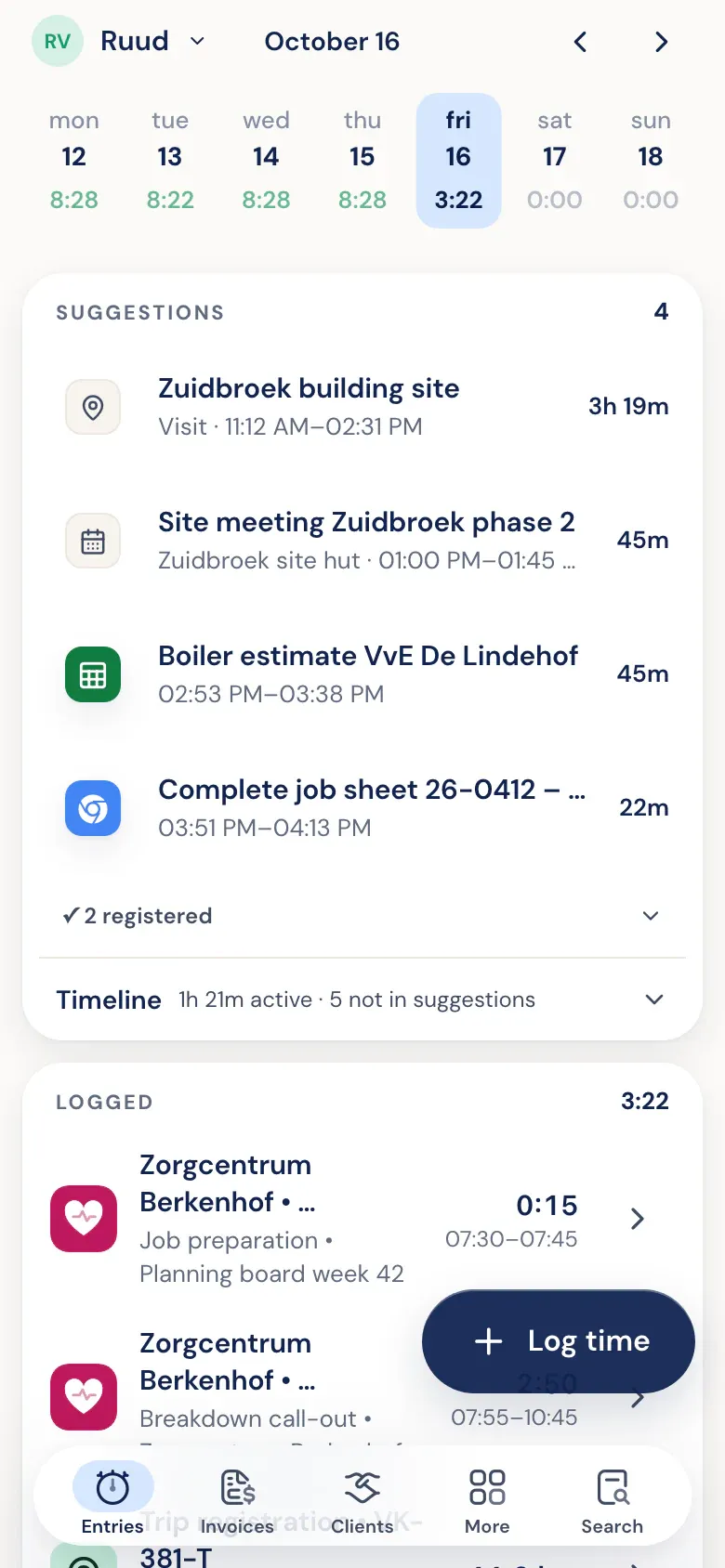
Appointments also appear on the Timeline. Afterwards Half5 suggests the hours on the right project.
- Only when you share
The Agenda only appears in the menu once your company shares a calendar. People who only log hours never see it.
What is on the deal is on the project.
-
Everything on the deal
The project shows every field of the Pipedrive deal as a readable list. Links are clickable.
-
Contact, notes and files
The deal's contact person, notes and files are included.
-
Amounts hidden
Deal value, product prices and money fields are hidden from employees. Admins and managers do see them.
Your own fields and documents.
-
Your own project fields
Without Pipedrive you add your own fields: text, number, choice, link, date or amount.
-
Who sees the field
Per field you choose: visible to everyone or to admins only.
-
Documents on the project
Documents are kept with the project.
Deals, products and an export.
-
Products
The products on a deal become project products.
-
Deals board
A board with the deals per pipeline and per stage.
-
Export to Excel
Export projects with their fields and products to Excel.