What Half5 tracks, and who can see it.
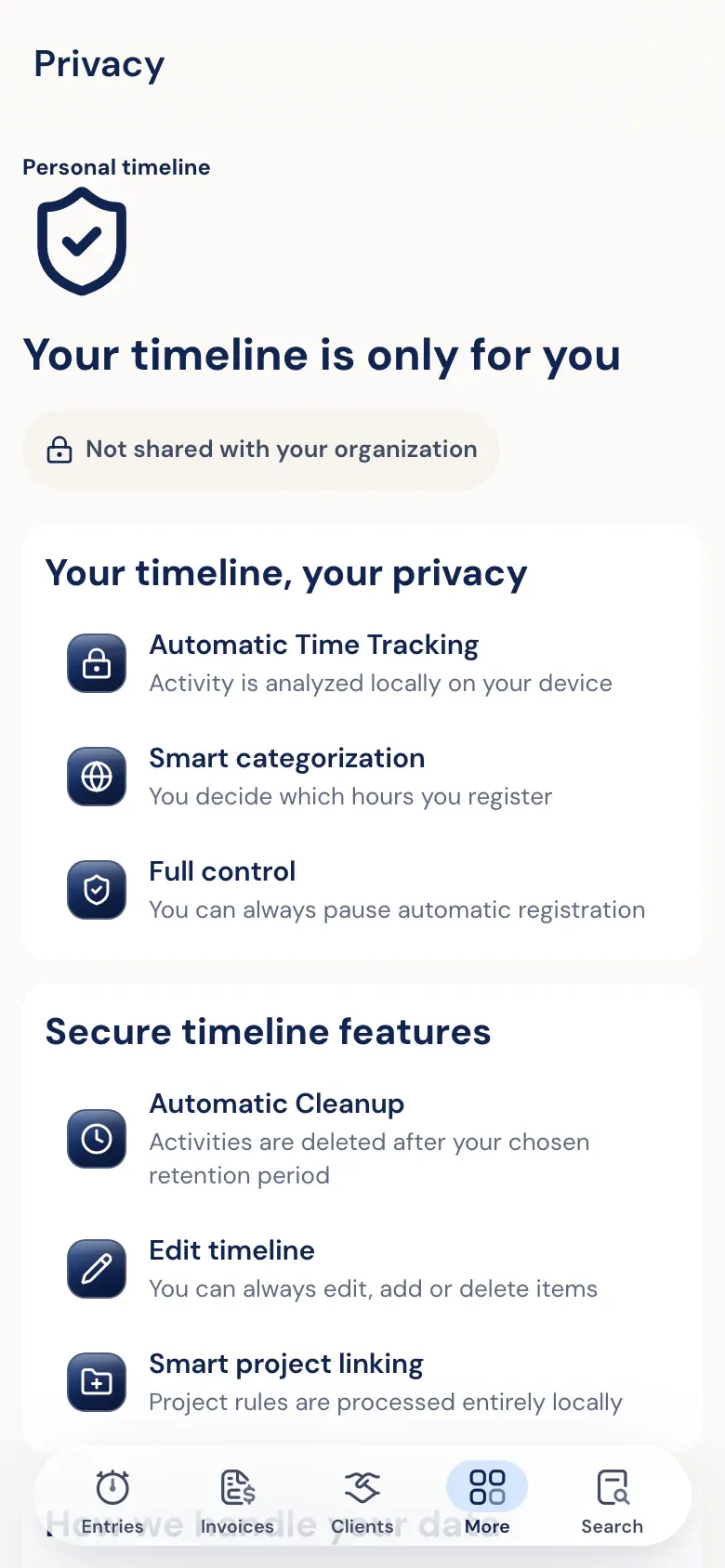
Your timeline is encrypted on your own devices and no one else can open it—not your manager, an admin, or Half5. What you log (hours, leave, drives) is visible to your manager. This page explains what that means for each role.
- Timeline
- Only you; your manager can see your entries
- Marketing
- No Google or Meta tracking before consent
- Contact
- [email protected]
Four types of data.
The exact data available depends on the integrations and apps your organization uses.
- Account and company setup
- Names, email addresses, departments, roles, workdays, rates, clients, projects and settings.
- Personal timeline
- Programs, windows, websites, files, commits, AI sessions, visits, detected drives, and phone calls (number, contact name, direction, time, and duration—never the content). Encrypted on your device and only synced between your own devices. The server stores it encrypted, without the key. Meetings from your own calendar connection are visible only to you.
- Entries
- Hours, leave, and drives someone logs: date, duration, client, project, activity, description, approval status, and invoice status.
- Integrations, support, and website
- Integration settings, support messages, assistant questions, required cookies, and marketing analytics only with consent.
Where the limit is, and why it's set.
- Timeline: only you
- A manager, admin, or Half5 can't open your timeline. The key is only on your devices; no setting or role can change that.
- Saved by you
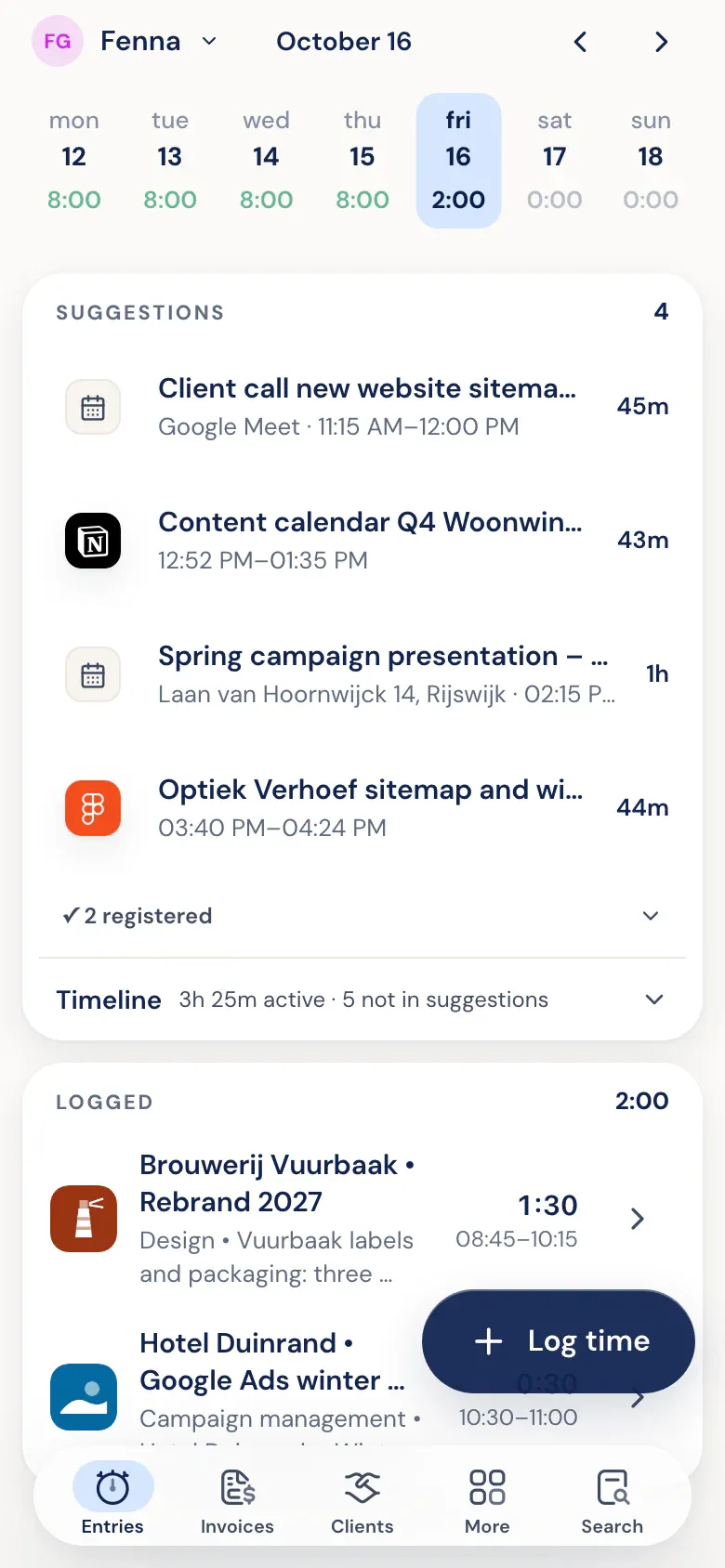
- A suggestion only becomes a record when you save it. Only then does your manager see it.
- Approve before invoicing
- If approval is on, only approved hours go on an invoice. Someone else approves your own hours.
- Integrations
- Accounting software receives clients, projects, and invoices. An AI agent via MCP only reads and logs hours for the user who connected it. No integration can access the timeline.
By role: timeline, entries, and owner.
No role can view another person's timeline. Reports show entries per person, within the same limits.
| Role | Timeline | Entries | Whose |
|---|---|---|---|
| You | Opens and edits your own timeline. | Your own hours, leave, and mileage. | Just you. |
| Department manager | Can't open it. | Hours, leave, and drives; approves or rejects; reports per person. | People whose main department this is, plus all hours on that department’s projects. |
| Admin | Can't open it. | Hours, leave, drives, reports, invoices, and settings. | The whole organization. |
| Integrations and agents | Can't open it. | Accounting: clients, projects, invoices. AI agent: log and retrieve hours. | An AI agent only sees the hours of the person who connected it. |
From timeline to invoice, in four steps.
Only step 1 is private. From step 2 on, you work with entries you saved yourself.
The route
- 01 Personal timeline
- For you only, encrypted on your devices.
- 02 Entry
- You save an hour, leave, or drive. From here, your manager can see it.
- 03 Approval
- A manager approves, or rejects with a reason.
- 04 Invoice and accounting
- Approved hours become invoice lines; the invoice can go to your accounting software.
Roles
There are three roles: admin, department manager, and employee. None can open another person's timeline.
AI features
Client and project recognition happens on your device. If you click the button to generate a description, that hour’s window titles and commits are sent to Google Gemini or OpenAI. The help assistant doesn’t read your timeline.
Integration permissions
AI agents sign in with OAuth on the user's account. In Half5, you can see which agents are linked and revoke access.
What you can ask.
Email [email protected]. If your request is about data managed by your employer, like your time entries, the request will go through your employer.
- See what personal data Half5 processes about you.
- Correction, deletion, or export of your data.
- Objection or restriction where allowed by law.
- You can delete your local timeline yourself in the app's privacy settings.
- You can change your marketing measurement consent in the cookie settings.
Delete your account and data
- Half5: open Profile and choose Delete account. That deletes your account and the data linked to it.
- Half5 Belletjes: disconnect the phone in Half5 under Devices, or delete your Half5 account. That also removes any calls the app has synced.
- If you can’t do it in the app, email [email protected] from your account email. We’ll delete your data within 30 days.
Appointments and vendors.
Roles, AI, and integrations are above. Below: who's responsible and which vendors are involved.
Client as data controller, Half5 as processor
When an organization rolls out Half5, we set roles, instructions, and retention periods in a data processing agreement.
Website and contact
For website visits and contact requests, Half5 only uses the data needed to respond.
Vendors and data transfers
Half5 uses vendors for hosting, email, payments, error monitoring, and AI features. The subprocessor list names each one, with the data they receive and where.